This is mainnet, and there is no sandbox. Anything you post, edit or play is a real, signed action under your own identity the moment you submit it.
Someone has to vouch for you. A new set stays dark until a person approves your request — that's deliberate, not a fault. The app shows you how to ask, and tunes itself in the moment you're approved.
Looking for the older Swimchain app — the one with forums, chat and a feed? It's still here: v0.1.10-alpha. Different app, different package — installing Surf won't replace it.
-
Check your Android version
You need Android 8.0 (Oreo) or newer. Settings → About phone → Android version.
-
Enable Developer Mode
Installing the APK this way requires Developer Mode. Go to
Settings → About phoneand tap Build number seven times until Android says "You are now a developer." (You may be asked for your PIN.) You can turn this back off after installing:Settings → System → Developer options. -
Download the APK
Tap the Download the APK button above. Your browser saves it to your Downloads folder.
-
Allow installs from your browser
Open the downloaded file. Android will say "For your security, your phone currently isn't allowed to install unknown apps from this source." Tap
Settings, turn on Allow from this source, then press back.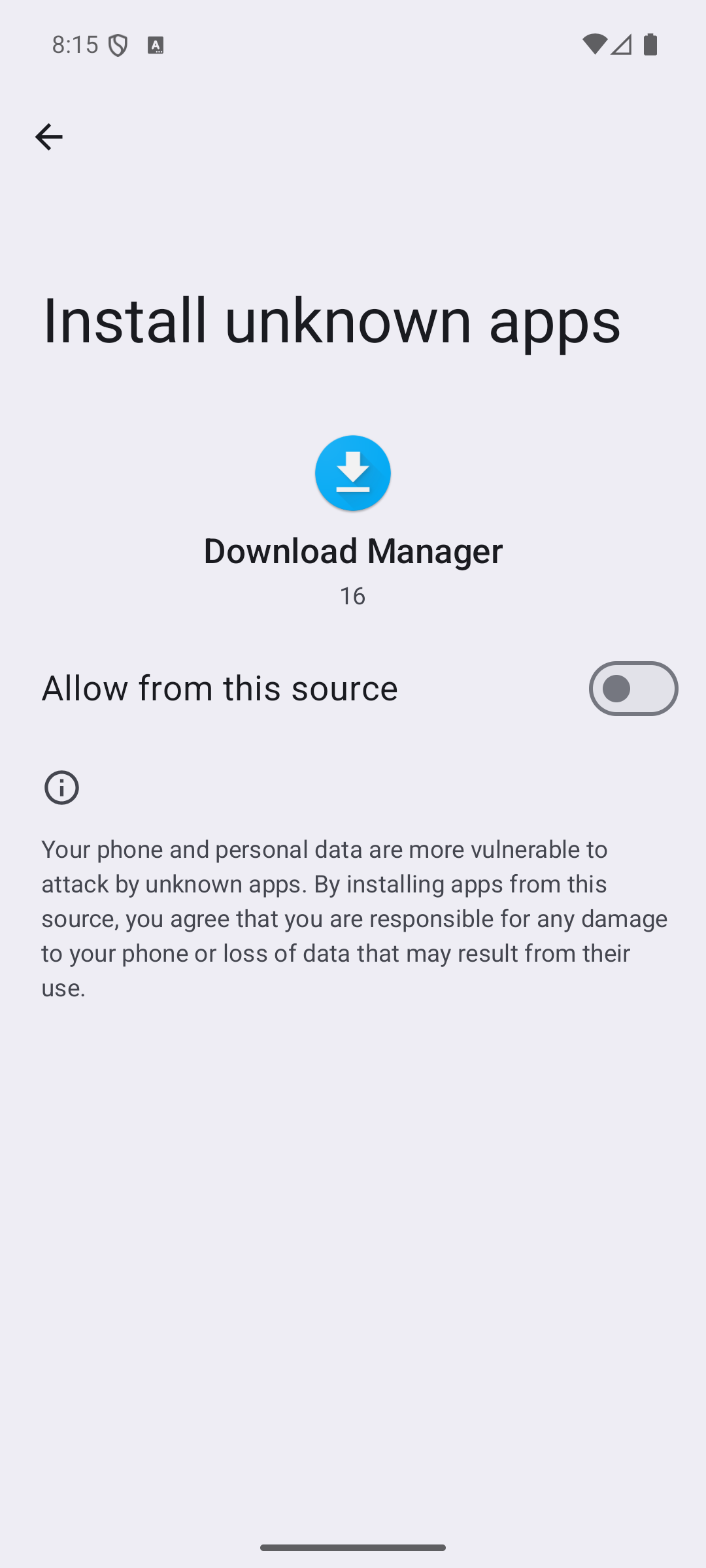
Turn on "Allow from this source," then press back. -
Get past the Play Protect check
Google Play Protect will say "App scan recommended — Play Protect hasn't seen this app before." Tap Scan app — Google checks it and comes back with "This app looks safe," then you tap Install. (You can also skip the scan via
More details→ Install without scanning.) This appears for any app not distributed through the Play Store.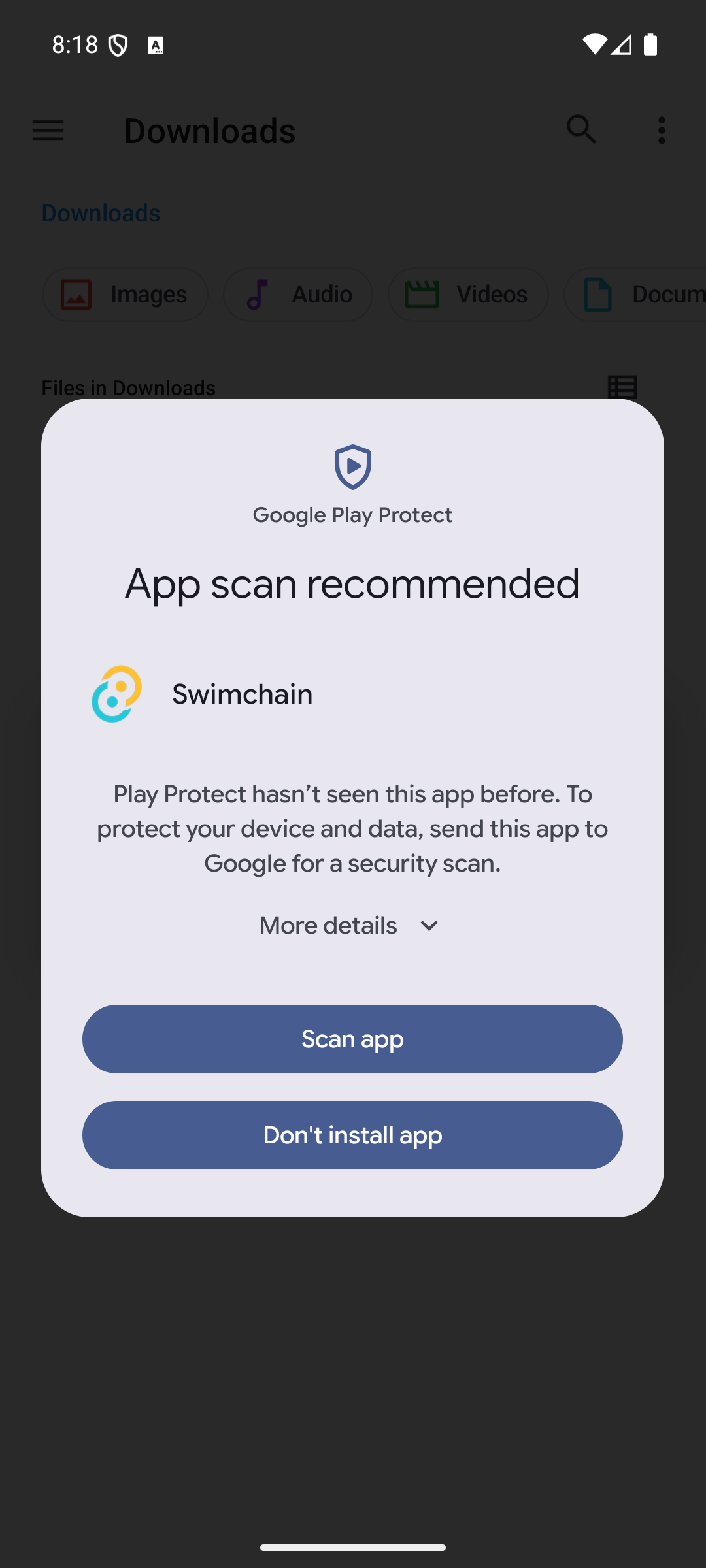
Tap "Scan app"… 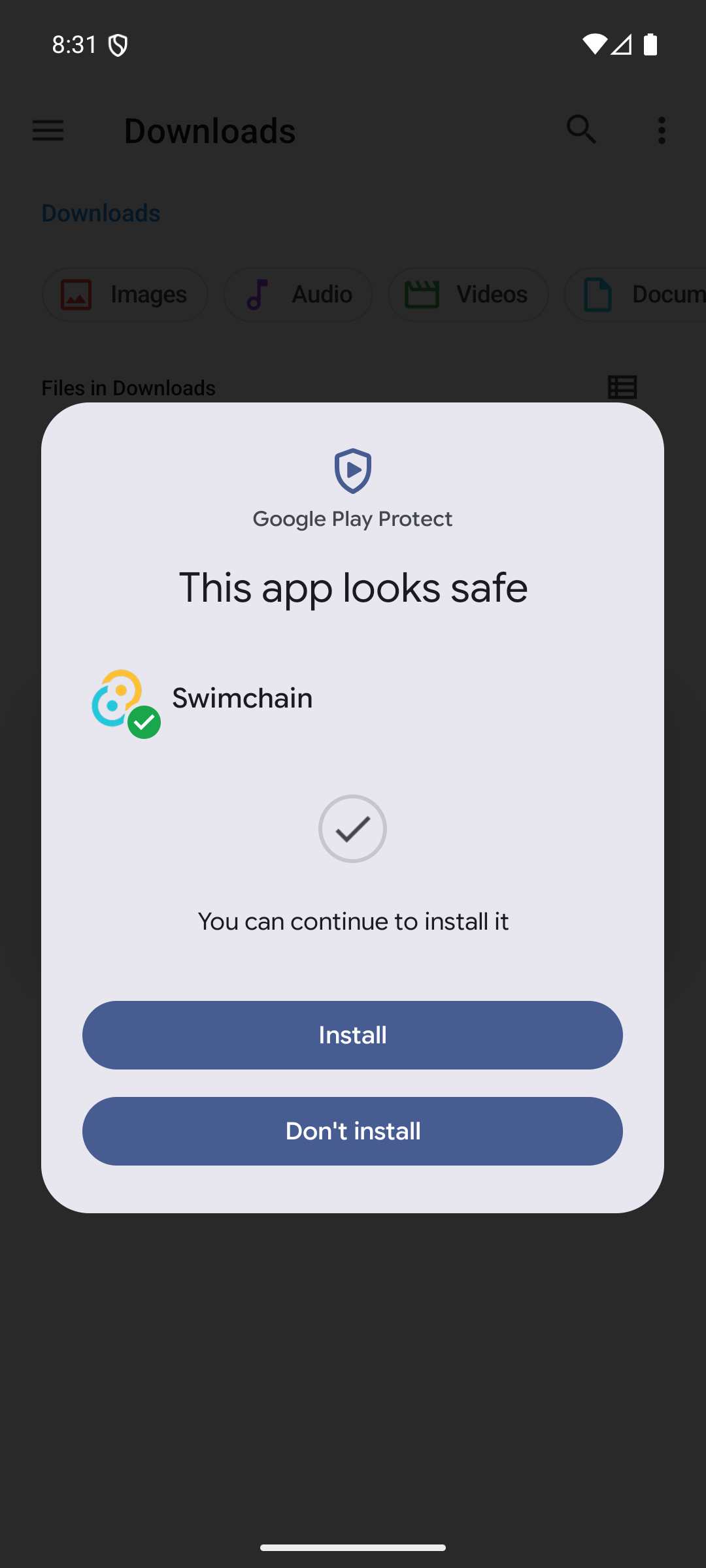
…Google confirms it's safe, then tap "Install." -
Power on the set & allow notifications
Launch Surf and tap Allow on the notification prompt. The node runs as a background service with a persistent notification while it syncs the chain — that's how a full node stays alive on mobile. Surf opens on static while it finds its first signal; that's the node syncing, not a fault.
These warnings appear for any app installed outside the Play Store — they're not specific to Surf. You can verify the download against the SHA-256 checksum above.